Introduction to n8n for Developers 🚀
Developers today often find themselves building custom scripts to connect disparate services. While powerful, this approach can be time-consuming and difficult to maintain. What if you could visually design and deploy these integrations in a fraction of the time, all while retaining the flexibility and control you expect? This is where n8n shines. It’s an open-source workflow automation platform that gives you the best of both worlds: a drag-and-drop interface for rapid development and the ability to extend and customize everything with code. It’s built for developers who want to streamline their work, connect APIs, and automate repetitive tasks without getting bogged down in boilerplate code. In this guide, we’ll get you up and running with n8n quickly, focusing on powerful integrations with LLMs and Google services.
Getting Started + Credentials
The fastest way to start building with n8n is to run it directly from your terminal. If you have Node.js installed, you can launch a local n8n instance with a single command:
npx n8nThis command downloads and runs the latest n8n version, making the visual workflow editor available in your browser. Once running, you’ll need to connect your external services. This is done by creating credentials. In the n8n UI, you can add credentials for services like OpenAI or Google Sheets. This process securely stores your API keys and OAuth tokens, allowing you to reuse them across multiple workflows without re-entering sensitive information. This separation of logic and credentials is a key feature that simplifies management and enhances security.
Building with Templates and Creating a Basic Workflow
Let’s walk through a basic but practical workflow: adding a new item to a Google Sheet.
- Add a Trigger: Start with a trigger node. For this example, let’s use a “Manual” trigger, which allows you to run the workflow with a single click.
- Add a Google Sheets Node: Connect a Google Sheets node to your trigger.
- Configure the Node: Select the “Append Row” operation. You’ll then specify your Google Sheet and the data you want to add.
- Connect Your Data: In the node settings, you can use the expression editor to map data from a previous step (or hardcode values for a test).
- Execute: Run the workflow. A new row will appear in your Google Sheet.
This simple example demonstrates the core concept: connecting nodes and passing data between them to create an automated process.
Workflow Templates
n8n offers a vast library of workflow templates on its website, which are an excellent resource for learning. Browse these templates gives you a practical understanding of how complex automations are built, from multi-step data transformations to conditional logic.
You can find the library here: https://n8n.io/workflows/
- Run your instance of n8n
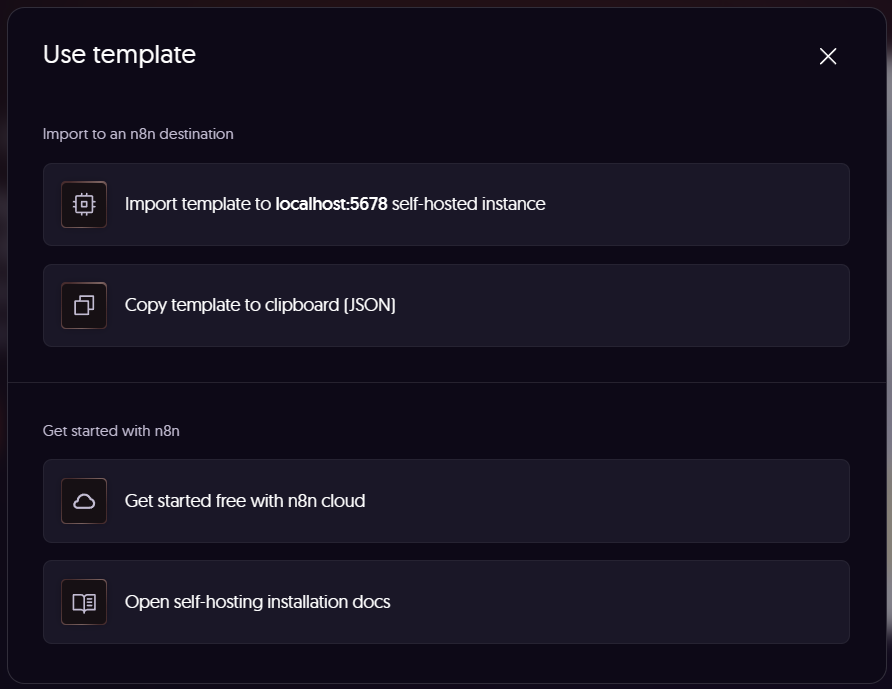
- On the n8n workflow templates page, select the template you want and click ‘Use for free’, or pay for a template.
- Import template to localhost:5678 (or the correct port).
- Setup any credentials required for the workflow, some workflows will have this documented.
- Execute the workflow
The Power of n8n in Action
n8n is more than just a simple integration tool; it’s a platform for building sophisticated automation. The real power comes from combining its vast number of integrations with the ability to add custom logic via Function nodes and its robust support for Large Language Models (LLMs). Imagine a workflow that:
- Analyzing data from any source and extracting trends, outliers, sentiment or any custom data point.
- Data processing, reporting and email communication in one tool.
- Exposing processed data through an endpoint for application consumption.
- Sends the summary to a team chat on Slack.
- Adds the original email and summary to a Google Sheet for logging.
This kind of multi-step, intelligent automation is what makes n8n a crucial tool for any developer looking to boost productivity and build powerful internal tools. It allows you to focus on the unique business logic of your application, letting n8n handle the glue code that connects everything.
Tutorial videos
Beginner
- This is a great tutorial on simply hitting a weather API, storing it in a Google Sheet and sending an email. With a schedule trigger you can have the weather in you inbox every morning.
Advanced
- Using the reddit API, scan for trending topics on Reddit